Qu'est-ce que c'est ?
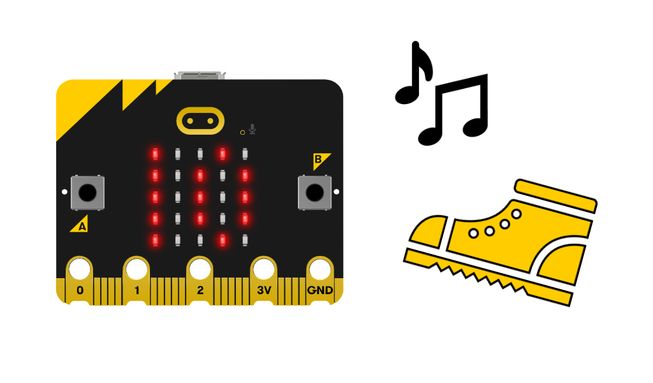
Ajoutez ce projet à votre micro:bit et il comptera vos pas Quand il aura compté 10, il jouera une musique et montrera un visage heureux sur son écran LED. Vous en apprendrez plus sur les variables et la logique.
Comment ça marche
- Fixez le micro:bit et la batterie à votre chaussure ou à votre cheville avec le micro:bit portable, placez-le dans votre chaussette, ou tenez-le simplement dans votre main et secouez-le en marchant.
- Faites quelques pas. Le nombre de pas effectués s'affiche sur l'écran LED.
- Le programme comprend une variable appelée ‘pas‘, qui stocke le nombre d’étapes effectuées. Les variables sont des conteneurs pour stocker des données, qui peuvent être accédées et mises à jour pendant l'exécution d'un programme.
- L’accéléromètre du micro:bit détecte les mouvements de votre pied. Le programme indique au micro:bit d'augmenter de 1 la valeur de la variable ‘pas‘ à chaque mouvement du pied ou à chaque secousse du micro:bit.
- Après avoir effectué 10 pas, une icône souriante apparaîtra à l'écran et une mélodie se fera entendre.
- A forever loop is used in the program to get the micro:bit to keep checking if the number of steps taken is 10. Logic then tells the micro:bit what to do. If the number of steps taken is equal to 10 then the micro:bit is told to display a happy icon and play a tune.
Ce dont vous aurez besoin
- un micro:bit
- L'éditeur MakeCode
- coupleur de piles
- Haut-parleur et clips crocodile en option si vous utilisez un micro:bit V1
Codez votre projet
Voici les blocs dont vous avez besoin pour faire le projet - il faut maintenant les mettre ensemble.
Instructions étape par étape
- Ouvrez le projet pour trouver les blocs dont vous avez besoin en utilisant les boutons ci-dessus.
- Find the set steps to 0 block and put it inside the on start block. Cela garantira que, lorsque le programme démarre, la valeur initiale de la variable steps est 0.
- Trouvez le bloc modifier pas de 1 et placez-le à l'intérieur du bloc lorsque secouer bloc.
- Find the show number steps block and put it inside the on shake block underneath the change steps by 1 block.
- Find the if steps = 10 then block and put it inside the forever block. Cela permettra au micro:bit de vérifier en permanence si le nombre de pas comptés est égal à 10.
- Now tell the micro:bit what to do if the number of steps is 10. Get the show icon happy block and put it inside the if steps = 10 then block.
- Find the remaining play melody dadadum block and put it inside the if steps = 10 then block, underneath the show icon happy block.
- Download the program to your micro:bit and try it out!
Personnalisez-le
- Use the drop-down arrow on the show icon block to show a different icon when you have walked 10 steps. Quelle est votre icône préférée ? Il y en a 40 au choix.
- Change the number in the if then block to a higher number than 10 so that the happy icon appears and the tune plays after you have been more active. Combien de pas souhaitez-vous faire par jour ?
Exemple de projet terminé
Jetez un coup d'œil à un extrait de code terminé
Projets associés
Ce projet fait partie d'une collection de projets inclusifs avec des sons et des images.