説明
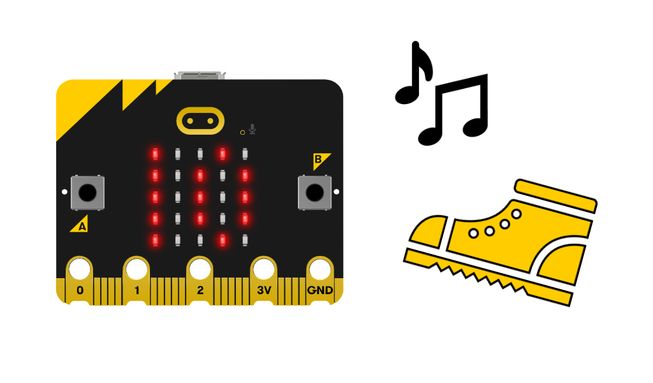
このプロジェクトをmicro:bitに追加すると、 歩数をカウントしてくれます。 10まで数えると、メロディーが流れ、LEDディスプレイにハッピーのマークが表示されます。変数と論理について学びます。
動作の仕組み
- micro:bitと電池パックをmicro:bitウェアラブルを使って靴や足首に取り付けたり、靴下の中に入れたり、手に持って歩きながら振ったりしてください。
- 数歩進んでください。歩数はLEDディスプレイに表示されます。
- このプログラムには「steps」という変数があり、これはこれまでに歩いた歩数を格納するものです。変数はデータを格納する容器で、プログラムが実行されている間アクセスしたり更新したりできます。
- The micro:bit’s accelerometer input senses when your foot moves. The program instructs the micro:bit to increase the number in the ‘steps’ variable by 1 every time your foot moves or the micro:bit is shaken.
- 10歩進むと、ディスプレイにハッピーなアイコンが表示され、メロディーが流れます。
- A forever loop is used in the program to get the micro:bit to keep checking if the number of steps taken is 10. ロジックはmicro:bitに何をすべきかを指示します。歩数が10歩に達した場合、micro:bitはハッピーアイコンを表示し、メロディーを再生するように指示されます。
必要なもの
- micro:bit
- MakeCodeエディター
- 電池ボックス
- micro:bit V1を使用する場合は、オプションでスピーカーとワニ口クリップが必要です。
プロジェクトをコーディングする
プロジェクトに必要なブロックは以下の通りです。さあ、これらを組み立ててみましょう。
手順ごとの説明
- Open the project to find the blocks you need using the buttons above.
- Find the set steps to 0 block and put it inside the on start block. This will ensure that, when the program starts, the initial value of the variable steps is 0.
- Find the change steps by 1 block and put it inside the on shake block.
- Find the show number steps block and put it inside the on shake block underneath the change steps by 1 block.
- Find the if steps = 10 then block and put it inside the forever block. This will keep the micro:bit continually checking to see if the number of steps counted is 10.
- Now tell the micro:bit what to do if the number of steps is 10. Get the show icon happy block and put it inside the if steps = 10 then block.
- Find the remaining play melody dadadum block and put it inside the if steps = 10 then block, underneath the show icon happy block.
- Download the program to your micro:bit and try it out!
Make it your own
- Use the drop-down arrow on the show icon block to show a different icon when you have walked 10 steps. Which icon is your favourite? There are 40 to choose from.
- Change the number in the if then block to a higher number than 10 so that the happy icon appears and the tune plays after you have been more active. How many steps do you want to walk a day?
Example of a completed project
Take a peek at some completed code
Related projects
This project is part of a collection of inclusive projects with sounds and images.