Introduction
You will make a Microsoft MakeCode for micro:bit project that randomly selects and plays music when you turn the BBC micro:bit so that the front faces down. This activity introduces using different gestures, using replaceable inputs, and adding ‘else’ and ‘else if’ branches to ‘if’ blocks.
What you need
- micro:bit V2 connected to MakeCode (see Preparation below)
- 50cm to 1m long USB A to USB Micro B cable (the additional length to the standard 0.3m cable length helps with freedom of movement)
- Computer with a keyboard
- Screen reader software
- Tactile code for this activity. Choose one of the following:
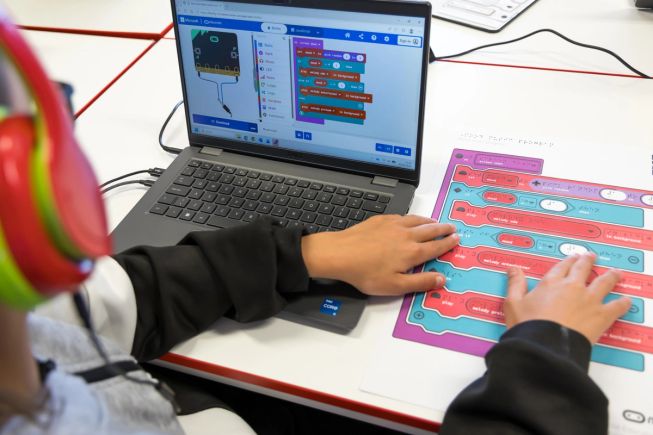
- Mood music tactile cut-out blocks (including the MakeCode tactile toolbox key)
- Mood music completed page tactile program (including the MakeCode tactile toolbox key)
- Mood music text program (for use with a braille embosser or as a digital document)
- Recommended: MakeCode editor tactile diagram and key
- Optional: refreshable braille device
Preparation
In these activities, instructions are given for Windows users. Mac users should use Command instead of Control and Option instead of Alt when using keyboard controls.
Before downloading your program to the micro:bit for the first time, you need to go through a series of steps to connect the micro:bit to MakeCode. These steps are screen reader accessible. However, educators may choose to complete these steps as part of preparation for this activity to give students a straightforward first experience. To do this, in MakeCode press Control + B then 5 to move to the Bottom bar then press Tab to move to the Download Options button and then press Enter and choose Connect Device, then follow the steps.
After connecting, a single L keypress can be used by the student to download a program to the micro:bit.
We recommend that educators create this program in MakeCode before guiding students through this activity.
You can return to tactile blocks at any point during the activity to reinforce concepts and students can use the completed project as a reference.
Instructions
Explore the tactile code
Guide your students through creating the Mood music project.
Each code block has a tactile icon. Use the MakeCode tactile toolbox key to identify which section to find the block in the toolbox in MakeCode.
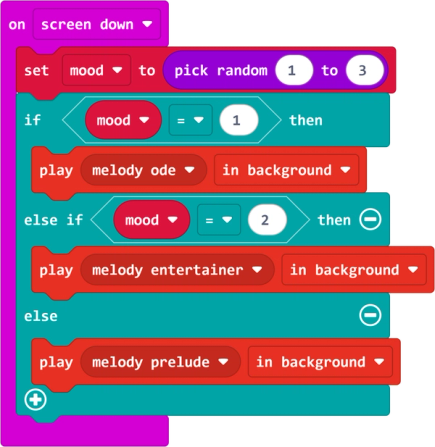
On the micro:bit, the screen down gesture is triggered by turning the micro:bit over so that the front (screen) is facing down. To create the ‘on screen down’ block in MakeCode, you add an ‘on shake’ block and then change the gesture input.
This project uses a variable called “mood” to store a random number. When you add a variable in MakeCode you can use a ‘set variable to’ block to set the value of the variable. The ‘set variable to’ block has a replaceable input. This means that you can place a value block from the toolbox into the input.
The ‘pick random’ block is a value block that can be used to provide a value for a replaceable input. In this project it is used to provide a random number for the mood variable.
This project uses an ‘if’ block with an ‘else if’ branch and an ‘else’ branch. An ‘if’ block can have many ‘else if’ branches but only one ‘if’ branch and one ‘else’ branch.
The ‘if’ branch and ‘else if’ branch each have a hexagonal input block. Hexagonal blocks are boolean blocks that can only provide the value true or false.
The ‘if’ block has an add button that can be used to add new branches.
Create a new project in MakeCode
- Go to the MakeCode for micro:bit home page. If you already have a project open, you can press Control + B then 1 to go to the top bar. Then press Tab to reach the Home screen button and press Enter.
- Press Tab to move to ‘New Project’ and then press Enter.
- Type “Mood music” as the name of your project and press Enter to create a new project.
- The MakeCode editor will open with a new project.
- Delete the ‘on start’ and ‘forever’ blocks.
- Add the code for the Mood music project from the tactile code or view the Mood music text program if you prefer.
Tip:
- Make sure screen reader mode is on. Press Alt + Shift + A from the workspace to turn screen reader mode on or off.
Select a random number
- Open the toolbox, choose the Input section and add an ‘on shake’ block. Change the gesture input to screen down. The options for the gesture input are arranged in a grid. Use the right arrow key to visit all options, it will wrap to the next row.
- Open the toolbox, choose the Variables section and select Make a variable. Press Enter. A dialogue opens with a text box. Type “mood” in the text box and press Enter. New blocks are added to the Variable section. Focus moves to the new ‘set mood to’ block.
- Press the down arrow key to select ‘set mood to 0’ block. Press Enter to add the block to the workspace in Move mode. Move the block inside the ‘on shake’ block. Press Enter to confirm.
- Open the toolbox, choose the Math section and add a ‘pick random’ block. If you have the ‘set mood’ block selected when you add the ‘pick random’ block, then it will be positioned in the ‘set mood’ block input, otherwise use the up and down arrow keys to find ‘value input set mood to’, press Enter to confirm the position.
- Change the pick random input numbers to 1 and 3.
Play a melody if the random number is 1
- Open the toolbox, choose the Logic section and add the first ‘if true then’ block after the ‘set mood’ block.
- Open the toolbox, choose the Logic section and go to the Comparison heading, add a ‘0 equals 0’ block to the boolean input in the ‘if’ block.
- Open the toolbox, choose the Variables section and add a ‘mood’ block to the first input in the ‘if’ branch. Change the remaining 0 input to 1.
- Open the toolbox, choose the Music section and add a ‘play melody dadadum’ block inside the ‘if’ branch. Change the melody to ode.
Play different melodies for different numbers
- Press the down arrow key to get to the add else branch button and press Enter to add an ‘else’ branch.
- Now press the down arrow key twice to get to the add else if branch button and press Enter to add an ‘else if’ branch before the ‘else’ branch. The condition for the ‘else if’ branch is selected. In MakeCode, an ‘if’ block has an add button. The first time you use it it will add an ‘else’ branch. If there is already an ‘else’ branch it will add an ‘else if’ branch.
- Press the up arrow key three times to reach the ‘if’ block. Press the right arrow key to reach its condition. Press D to duplicate the condition. This will copy the whole Boolean block with the equals comparison.
- Press M to put the condition block into Move mode. Press the down arrow key to move the block to condition in ‘else if’, press Enter to confirm.
- Change the 1 to a 2 in the ‘else if’ condition that you just added.
- Use the up arrow key to move to the play melody block. Press D to duplicate the block. Press M and move the block inside the ‘else if’ branch. Press Enter to confirm.
- Change the melody from ode to entertainer.
- Press the left arrow key to move to the ‘play melody entertainer’ block without an input selected.
- Press D to duplicate the block again. Press M and move the block ‘inside else if’ branch. Press Enter to confirm.
- Change the melody from entertainer to prelude.
Tips:
- You can use D to duplicate an existing block instead of getting a block from the toolbox.
- If you navigate back up to the ‘if’ branch, you need to press the right arrow key to reach the condition.
Test the project
- Press L to download the project.
- Hold the micro:bit with the front upwards.
- To trigger the screen down gesture, keep the USB cable at the top and turn the micro:bit over so that the back is on top. A random melody will play when the micro:bit detects the screen down gesture.
- To repeat the gesture, you first need to turn the micro:bit front up.
The completed Mood music project is available below:
Make it your own
- Choose different melodies.
- In the ‘pick random number’ block, increase the second number to generate more numbers and add more ‘else if’ branches that check for those numbers and play different tunes.
- Swap the play melody blocks for the first play melody block in the Music section and compose your own tunes.
What next?
- Try Inclusive projects with sounds and images.
- Try Make it: code it projects that use the audio recorder feature. Note that the sound quality is better if you attach an external speaker.
- Adapt Make it: code it projects to use audio instead of visual output.