説明
micro:bitの光センサーを使って、クッキーを守るための音の出るアラームを作りましょう。この楽しいプロジェクトを通して、生徒たちは選択について学ぶことができます。
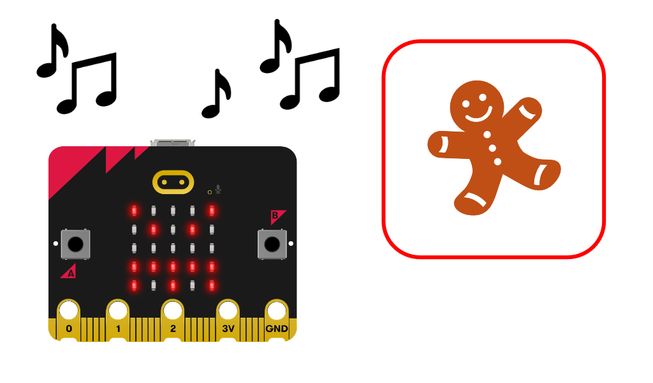
動作の仕組み
- このプログラムは、micro:bitのLEDディスプレイを光センサーとして機能させる。
- micro:bitをクッキー缶に入れてください。缶が開けられると、光センサーが光量の変化を検知し、アラームが鳴ります。
- The program uses an infinite loop or forever block to keep checking the light levels. ループは反復処理とも呼ばれます。
- Selection or an if then else block is used with comparison logic so that if the light level is above a certain amount, an angry face appears on the display and an audible alarm plays.
- Press the reset button on the back of your micro:bit to reset the alarm.
必要なもの
- micro:bit
- MakeCodeエディター
- 電池ボックス
- optional speaker and crocodile clips if you are using a micro:bit V1
Code your project
Here are the blocks you need to make the project - now put them together.
Step-by-step instructions
- Open the project to find the blocks you need using the buttons above.
- Find the if then else block and put it inside the forever block.
- Find the 0 > 30 comparison block and put it onto the word ‘true’ in the if then else block.
- Find the light level block and put it onto the zero in the 0 > 30 comparison block.
- Locate the show icon (angry) block and put it in the if then else block underneath ‘if light level > 30’.
- Find the play melody dadadum block and put it directly underneath the show icon block.
- Now, whenever the light level is more than 30, your micro:bit will show an angry icon and play an alarm. But you must also tell your micro:bit what to do if the light level is not more than 30.
- Under ‘else’ in the if then else block, add the final clear screen block.
- Download the program to your micro:bit, attach a battery pack, and try it out!
Make it your own
- Make the alarm more or less sensitive… by adjusting the number in the comparison block. Numbers larger than 30 will require more light to trigger the alarm. Numbers smaller than 30 will require less light to trigger the alarm.
- Change the icon… using the options in the show icon block. Which icon is most likely to scare cookie thieves away?
- Change the melody… by using the options in the play melody block. There are 10 melodies to choose from.
Example of a completed project
Take a peek at some completed code
Related projects
This project is part of a collection of inclusive projects with sounds and images.