Introduction
Make a doorbell that plays musical notes when button A is pressed using Microsoft MakeCode for micro:bit. This activity introduces adding new code blocks from the toolbox and changing the order of blocks by moving them around.
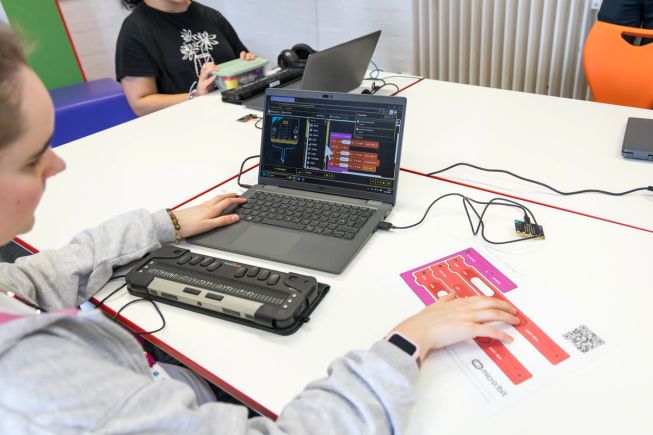
What you need
- BBC micro:bit V2 connected to MakeCode (see Preparation below)
- 50cm to 1m long USB A to micro USB connector cable (the additional length to the standard 0.3m cable helps with freedom of movement)
- Computer with a keyboard
- Screen reader software
- Recommended: MakeCode editor tactile diagram and key
- Tactile code for this activity. Choose one of the following:
- Doorbell tactile cut-out blocks (including the MakeCode tactile toolbox key)
- Doorbell completed tactile program (including the MakeCode tactile toolbox key)
- Doorbell text program
- Optional: Refreshable braille device
Preparation
In these activities, instructions are given for Windows users. Mac users should use Command instead of Control and Option instead of Alt when using keyboard controls.
Before downloading your program to the micro:bit for the first time, you need to go through a series of steps to connect the micro:bit to MakeCode. These steps are screen reader accessible. However, educators may choose to complete these steps as part of preparation for this activity to give students a straightforward first experience. To do this, in MakeCode press Control + B then 5 to move to the Bottom bar then press Tab to move to the Download Options button and then press Enter and choose Connect Device, then follow the steps.
After connecting, a single L keypress can be used by the student to download a program to the micro:bit.
If you are using the MakeCode tactile cut-out blocks, set up the blocks to match the Doorbell project.
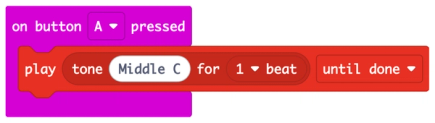
Using the blocks, talk the student through creating the completed project.
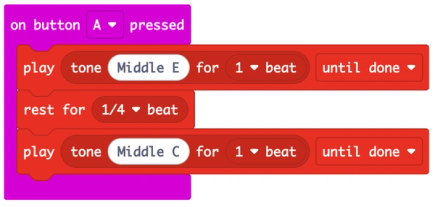
Alternatively, use the completed tactile program.
You can return to tactile blocks at any point during the activity to reinforce concepts and students can use the completed project as a reference.
Instructions
Explore the tactile editor diagram
Explore the MakeCode editor tactile diagram.
Find the toolbox. You can add additional code blocks from the toolbox.
Explore the tactile code
Explore the tactile Doorbell code. The code starts with an ‘on button A pressed’ block, a container block, with a ‘play tone Middle C’ block inside it.
Add a ‘rest for 1 beat’ block after the ‘play tone’ block. Change the 1 beat to a ¼ beat on the block.
Add another ‘play tone’ block. Change the ‘play tone Middle C for 1 beat’ to Middle E.
Swap the ‘play tone Middle C’ block and the ‘play tone Middle E’ block. In MakeCode you will swap the order of the notes so Middle E plays first.
Each code block has a tactile icon to indicate which toolbox section it can be found in. Use the MakeCode tactile toolbox key to find a block in the toolbox in MakeCode.
Activity walkthrough
This video provides step-by-step instructions to guide you through the activity using keyboard controls and a screen reader. The video includes the screen reader output from MakeCode. Exact screen reader output will depend on the screen reader software and user settings. Key presses are audio narrated and shown on the screen.
Note:
- The video was created on a Windows computer. Mac users should use Command instead of Control and Option instead of Alt.
- The screen reader output varies based on screen reader software and settings. The NVDA screen reader is used in the video.
- The male voice is the screen reader output. The female voice announces key presses.
Open the project in MakeCode
Tips:
- You can also get to the workspace at any time by pressing Control + B, then press 4.
- Make sure screen reader mode is on. Press Alt + Shift + A from the workspace to turn screen reader mode on or off.
Navigate the project
In MakeCode, code blocks are placed on the workspace. The Doorbell project already has code blocks on the workspace.
- Press the down arrow key to move to the next block.
- Use the up and down arrow keys to navigate the project.
Tips:
- You can use a screen reader command to read the currently focused block if you need to hear it again. This is usually your screen reader key + Tab.
- You will hear a beep when you reach the end of the code. Press the up arrow key to move up to the previous block.
Try the project
- Press L to download the project to your micro:bit.
- Press Button A on the micro:bit to hear the sound.
Add a ‘rest’ block
- Select the ‘play tone Middle C’ block.
- Press T to open the toolbox.
- Use the down arrow key to move to the Music section. Then press the right arrow key to move to the Music blocks.
- Use the down arrow key to select ‘rest for 1 beat’ block and Enter to add it to the workspace.
- The block will be in Move mode. Press Enter to confirm the block position.
- Change the 1 beat to ¼ beat.
Add a ‘play tone’ block
- Press T to open the toolbox. The toolbox remembers the last section you visited. Select the Music section and press the right arrow key to move to the Music blocks. Add a ‘play tone Middle C’ block and place it after the ‘rest for 1 beat’ block.
- With the play tone block selected, press the right arrow key twice to move to the note input and Enter to edit it.
- Use the up arrow key to choose Middle E and Enter to confirm.
- Press L to download the project and try it on your micro:bit.
Tips:
- When you add a block from the toolbox, it will be added after the selected block, you can move it if you need to.
- Press the right arrow key to move to the next input. Press Enter to edit an input and Enter again to confirm.
- You need to press the right arrow key twice to get to the note input on a ‘play tone’ block.
Swap the ‘play tone’ blocks
The doorbell has two sounds but it can be improved.
- Make sure you are on the ‘play tone Middle E’ block.
- Press M to put the block into Move mode.
- Press the up arrow key to place the block above the ‘first play tone’ block, inside ‘on button A pressed’ block. Press Enter to confirm the position.
- Press the down arrow key to select the ‘play tone Middle C’ block. Press M to put the block into Move mode and use the down arrow key to move the block after the ‘rest for 1 beat’ block and press Enter to confirm.
- Use the up and down arrow keys to read your code.
- Press L to download the project and try it on your micro:bit.
The completed code is available below:
Make it your own
- Add more notes.
- Change the beat.
- Try using the ‘play melody’ block to compose your own doorbell tune. This is the first block in the Music section.