What is it?
Display happy and sad icons and play happy and sad sounds on your BBC micro:bit by pressing buttons A and B. This is a great project to encourage students to talk about their feelings.
How it works
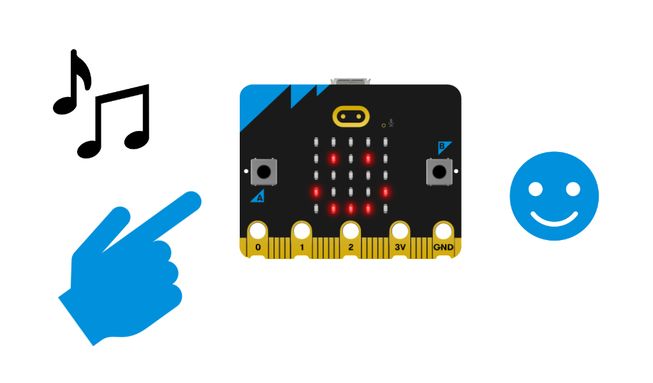
- When you press button A, the micro:bit shows a happy icon on its LED display and plays a happy sound.
- When you press button B, the micro:bit shows a sad icon on its LED display and plays a sad sound.
- Inputs allow us to put data into a computer or device. In this project, the inputs are pressing buttons A or B.
- A detectable action, like a user pressing a button, is sometimes called an event in computing.
- An output is the processed information that is sent out from a computer. In this project, the output is the icons shown on the micro:bit's display and the sounds that are played from the micro:bit’s speaker.
What you need
- a V2 micro:bit
- MakeCode editor
- battery pack
Code your project
Here are the blocks you need to make the project - now put them together.
Step-by-step instructions
- Open the project to find the blocks you need using the buttons above.
- Find and select the show icon happy block.
- Put it inside the on button A pressed block.
- Find and select the play giggle until done block.
- Put the play giggle until done block inside the on button A pressed block underneath the show icon happy block.
- Change the sound giggle to happy in the play giggle until done block.
- Find and select the show icon sad block.
- Put it inside the on button B pressed block.
- Now select the remaining play giggle until done block and put it inside the on button B pressed block underneath the show icon sad block.
- Change the sound giggle to sad in the play giggle until done block.
- Download the program to your micro:bit, attach a battery pack, and try it out!
Make it your own
- Try out some other sounds in the play giggle until done block. There are 10 to choose from.
- Choose different icons to display such as angry, confused or surprised.
Example of a completed project
Take a peek at some completed code.
Related projects
This project is part of a collection of inclusive projects for students with visual impairments.