What is it?
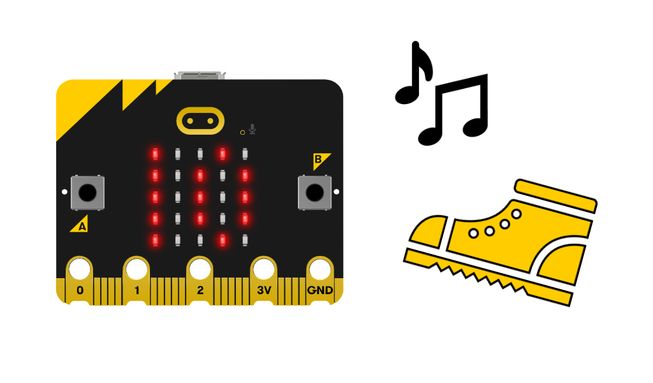
Add this project to your micro:bit and it will count your steps. When it has counted 10, it will play a tune and show a happy face on its LED display. You will learn about variables and logic.
How it works
- Attach the micro:bit and battery pack to your shoe or ankle with the micro:bit wearable, place it inside your sock, or just hold it in your hand and shake it as you walk.
- Take a few steps. The number of steps you've taken is shown on the LED display.
- The program includes a variable called ‘steps’, which stores the number of steps that have been taken. Variables are containers for storing data, which can be accessed and updated while a program is running.
- The micro:bit’s accelerometer input senses when your foot moves. The program instructs the micro:bit to increase the number in the ‘steps’ variable by 1 every time your foot moves or the micro:bit is shaken.
- When you have taken 10 steps, a happy icon will appear on the display and a tune will play.
- A forever loop is used in the program to get the micro:bit to keep checking if the number of steps taken is 10. Logic then tells the micro:bit what to do. If the number of steps taken is equal to 10 then the micro:bit is told to display a happy icon and play a tune.
What you need
- a micro:bit
- MakeCode editor
- battery pack
- optional speaker and crocodile clips if you are using a micro:bit V1
Code your project
Here are the blocks you need to make the project - now put them together.
Step-by-step instructions
- Open the project to find the blocks you need using the buttons above.
- Find the set steps to 0 block and put it inside the on start block. This will ensure that, when the program starts, the initial value of the variable steps is 0.
- Find the change steps by 1 block and put it inside the on shake block.
- Find the show number steps block and put it inside the on shake block underneath the change steps by 1 block.
- Find the if steps = 10 then block and put it inside the forever block. This will keep the micro:bit continually checking to see if the number of steps counted is 10.
- Now tell the micro:bit what to do if the number of steps is 10. Get the show icon happy block and put it inside the if steps = 10 then block.
- Find the remaining play melody dadadum block and put it inside the if steps = 10 then block, underneath the show icon happy block.
- Download the program to your micro:bit and try it out!
Make it your own
- Use the drop-down arrow on the show icon block to show a different icon when you have walked 10 steps. Which icon is your favourite? There are 40 to choose from.
- Change the number in the if then block to a higher number than 10 so that the happy icon appears and the tune plays after you have been more active. How many steps do you want to walk a day?
Example of a completed project
Take a peek at some completed code
Related projects
This project is part of a collection of inclusive projects for students with visual impairments.