Keyboard controls are available in the Microsoft MakeCode for micro:bit block-based editor to allow programs to be created with a keyboard or assistive technologies.
Keyboard controls are built into MakeCode, no setup required.
Open a project in the MakeCode editor, press Tab to reach Skip to Blocks workspace and then Enter. Use Control + / (Windows) or Command + / (Mac) to open and close the keyboard controls help in the editor.
More details of the functionality are provided within the Microsoft MakeCode Accessibility Statement. In addition, the resources below may be useful to help you get started.
Keyboard controls guide (PDF)
This guide is designed to be printed or shown on a second screen. It provides a visual guide to the main keyboard controls. Some additional keyboard controls can be found in the MakeCode keyboard controls (text guide).
These 3 videos provide step-by-step instructions to guide you through creating projects using only keyboard controls. Each video focuses on different keyboard control functionality:
Getting started with keyboard controls. Turn on keyboard controls, create and edit a program and use the simulator.
Using loops, on shake, show LEDs, and play melody blocks with keyboard controls.
Using logic, play tone and temperature blocks with keyboard controls.
Note: These videos were created on a Windows computer. Mac users should use Command instead of Control.
FAQs
Does keyboard navigation work in MakeCode within micro:bit CreateAI?
Yes, you can use keyboard navigation when you use the MakeCode code editor in micro:bit CreateAI. After pressing ‘Edit in MakeCode’, close the tour dialog if it appears, press Tab and then Enter to ‘Enable blocks keyboard controls’.
Does keyboard navigation work in MakeCode within micro:bit classroom?
Yes, you can use keyboard navigation when you use the MakeCode code editor in micro:bit classroom. There are two differences:
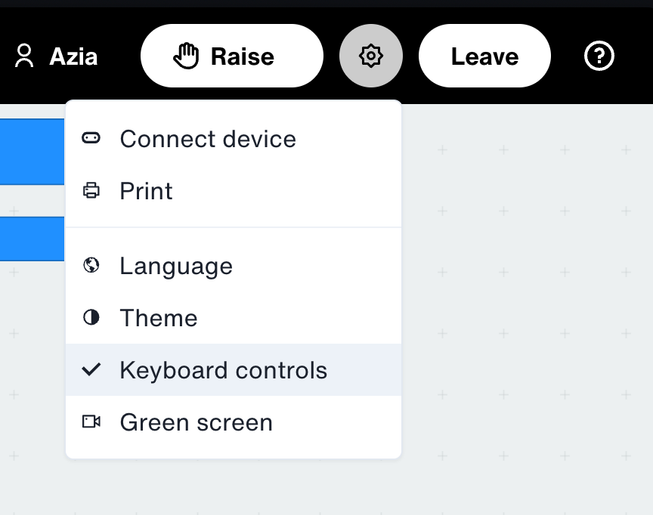
1. The first tab stop for enabling keyboard navigation in MakeCode is not available in micro:bit classroom. Instead, use the settings menu (the cog icon) to select the ‘Keyboard controls’ item.
2. The top bar in micro:bit classroom is not accessible from the MakeCode area menu. Use Control + B (Windows) or Command + B (Mac) to open the area menu, press the number shown in the area on the left, then press Shift + Tab to move back to the top bar.
Who can benefit from keyboard controls?
Keyboard controls make block-based coding accessible to students with fine motor challenges. Keyboard controls are available to everyone.
Some users find it faster to use keyboard controls or prefer to use them for some actions. Many mouse users already use keyboard shortcuts for copy and paste and will find others useful.
How should I get started using keyboard controls?
To get started, we recommend:
Watching the getting started videos on this page
Downloading the keyboard control visual or text guide
For more advanced users, or those wishing to try text-based coding, we recommend the micro:bit Python editor.
Both work well for keyboard or assistive technology users.
Can I navigate the Microsoft MakeCode block editor using the keyboard only?
All areas of the block-based editor are keyboard accessible and programs can be downloaded to a micro:bit using keyboard controls.
Additional features and improvements will be made in future versions based on feedback.
Can I use keyboard shortcuts if I find it difficult to hold multiple keys at once?
Most shortcuts use a single key, but some require you to hold Control or Command while pressing another key. If this is difficult for you, we recommend using StickyKeys which is an accessibility feature available on all major platforms. This allows you to press one key at a time, but your computer treats it as if the keys were being held down together.
There are some limitations in the current release of MakeCode that will be addressed in a future release.
Comments: Support for block comments is limited. You can add a block comment from the context menu on a block and open it with Enter or Space and add comment text. Escape closes the comment and block comments cannot be positioned on the workspace. Workspace comments are fully supported.
Functions: It is not yet possible to add parameters to functions using keyboard controls or rename the function in the function editor. If you attempt to add a parameter or edit the function in the function editor then you can’t use the keyboard controls to leave the function editor.
Editing a field:Clicking outside of the toolbox and workspace while editing a field, i.e. without confirming or cancelling the edit, can temporarily break some keyboard interactions. This only applies when using tab to return to the toolbox or workspace. Normal operation is restored after closing the toolbox with escape, clicking back in the workspace or navigating to the toolbox or workspace with the area menu.
Caret browsing:Some users may find that the arrow keys do not work as expected in some situations. This happens if caret browsing is turned on. Press F7 to disable caret browsing. Keyboard controls are not currently compatible with caret browsing in a web browser.
If you encounter a situation where the keyboard controls can’t be used to navigate then use Control + R (Windows) or Command + R (Mac) to reload the page and continue.
How do I turn on keyboard controls in MakeCode?
To turn on keyboard controls, open a project in the MakeCode editor, and press Tab and then Enter to ‘Enable blocks keyboard controls’. Use Control + / (Windows) or Command + / (Mac) to open and close the keyboard controls help in the editor.