Using micro:bit with an Apple iPad or Android tablet
Code your micro:bit using iOS or Android devices
micro:bit app
You can program your BBC micro:bit on an iPad, iPhone or Android device:
- Apple iPad or iPhone:
- Download the micro:bit app
- Write code in Microsoft MakeCode inside the app
- Or write code in a Chrome or Edge web browser and just use the app to transfer your code to the micro:bit
- This works with MakeCode, micro:bit classroom or, on micro:bit V2s only, using the micro:bit Python Editor
- Or write code in a Chrome or Edge web browser and just use the app to transfer your code to the micro:bit
- Send the code via Bluetooth using the app
- For more details, see: creating and sending programs on a iPad or iPhone
- Android devices:
- Using a cable (recommended)
- Write code in a Chrome or Edge web browser (MakeCode, micro:bit Python Editor, or using micro:bit classroom)
- Send the code to the micro:bit using the cable
- Using the micro:bit app
- For more details see: using the micro:bit on Android.
- Using a cable (recommended)


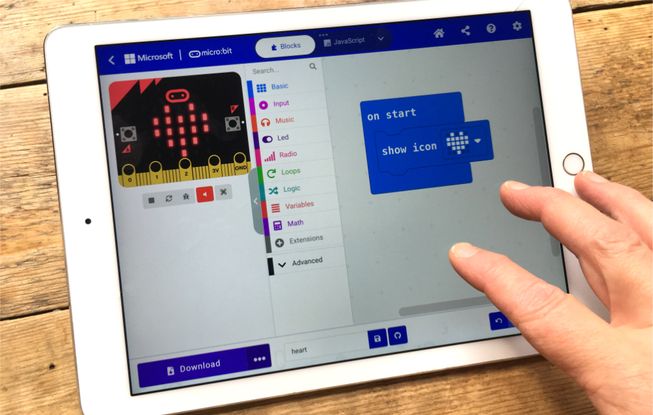
Apple iPads and iPhones
On an Apple iOS device, i.e. an iPad or iPhone, you need to download the free app to send code to your micro:bit using Bluetooth.
It is not possible to send code over a cable on an iOS device.
See creating and sending programs on a iPad or iPhone for more details. This includes details of how to retrieve data created as part of a data logging project using the iOS app.
Android devices
On Android devices, we recommend using MakeCode or the micro:bit Python Editor in a Chrome or Edge web browser and downloading to your micro:bit using a cable between the Android device and micro:bit.
Alternatively, you can use the micro:bit Android app and send code using Bluetooth. The app is available for Android 8 or later. Please check you have downloaded any updates available for the app.
See using the micro:bit on Android for more details.
micro:bit CreateAI app
The micro:bit CreateAI app is a free app for iPads and Android tablets that makes it easy for you to explore AI through movement and machine learning.
For more details, see the micro:bit CreateAI user guide.
Top tips for connecting your micro:bit using Bluetooth
- Before you start, it’s a good idea to use a computer to flash a fresh MakeCode HEX file onto your micro:bit, especially if you’ve previously been using Python with your micro:bit. Use your own program or the simple program in reset your micro:bit.
- Make sure your micro:bit is in Bluetooth mode every time you transfer a MakeCode program to it via the app.
- To enter Bluetooth mode, if pressing the reset button 3 times on the micro:bit doesn't work, try holding down the A and B buttons, then press and release the reset button. Keep holding A and B buttons until all the LEDs on the display light up. If you cannot access the reset button, hold A and B while you power on the micro:bit (e.g. by plugging in the battery or switching it on).
- If you’re using batteries to power your micro:bit when using the app, make sure they are fresh. Even if the micro:bit seems to be working, it may not have enough power for the Bluetooth radio function to work.
- For help with the apps and any other aspects of micro:bit, check out our Knowledge base or submit a help request.